 ปรึกษาผู้เชี่ยวชาญฟรี
 สร้างพัสดุ →
How to Create Shipment
Information as of 22 May 2025
- Help
- How to use
- How to Create Shipment
app.fastship.co is designed for you to simply create online shipment anywhere anytime
1. Log In
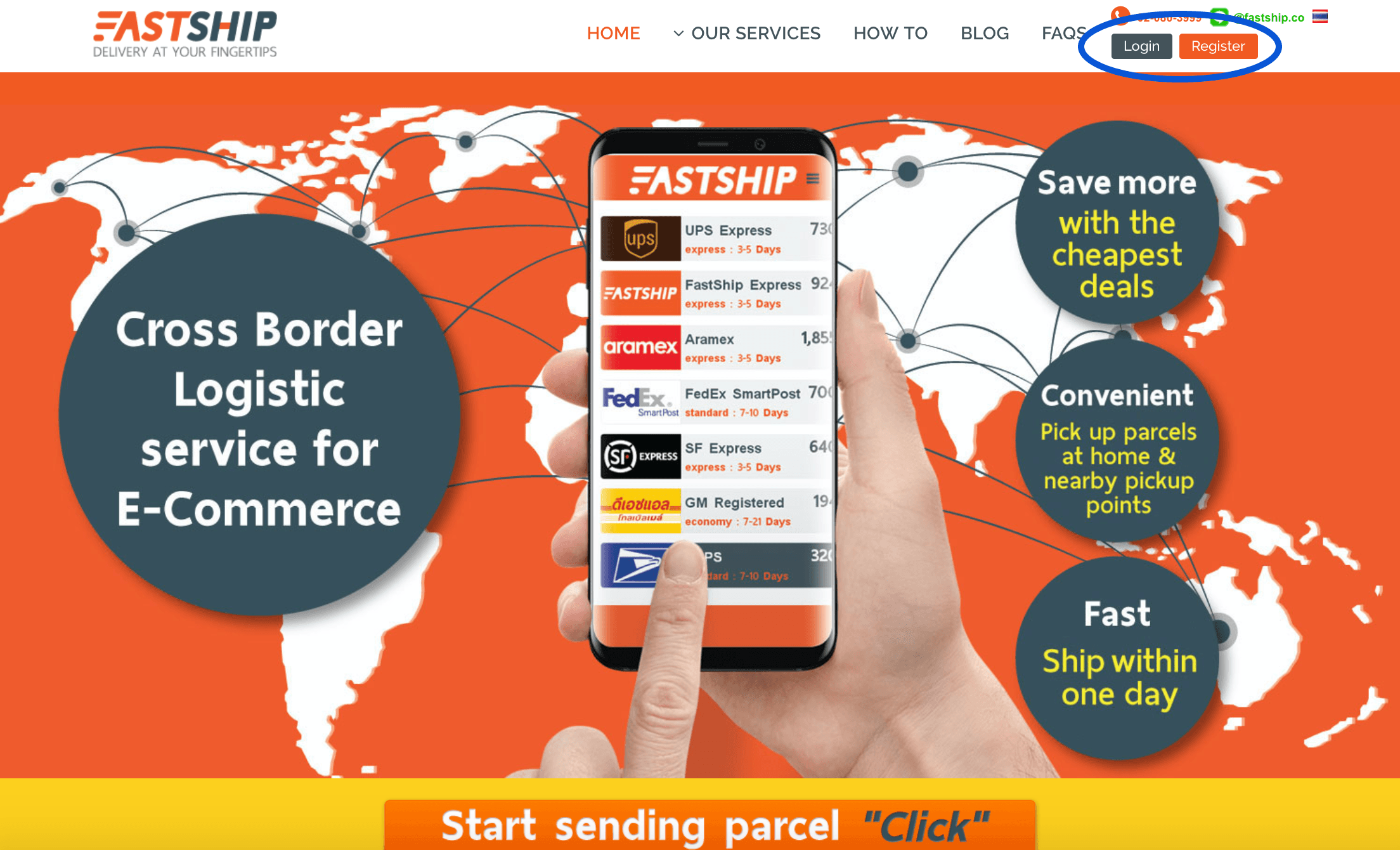
Click “Log In” to access and start using our app. If you haven’t got an account, please learn more on How to register
2. Input your email and set your password
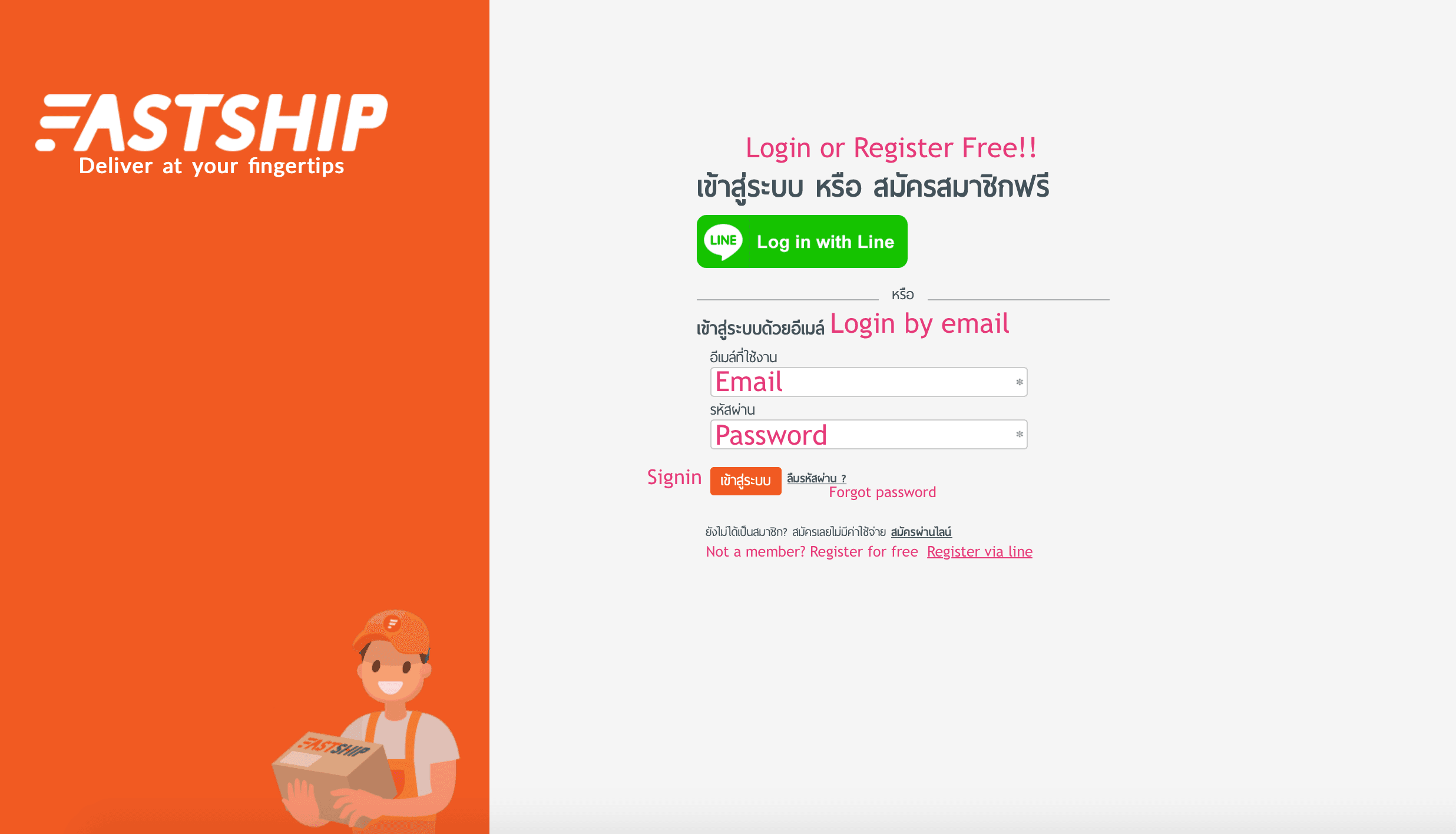
Input your email and password to access to the web app.
3. Create the shipment
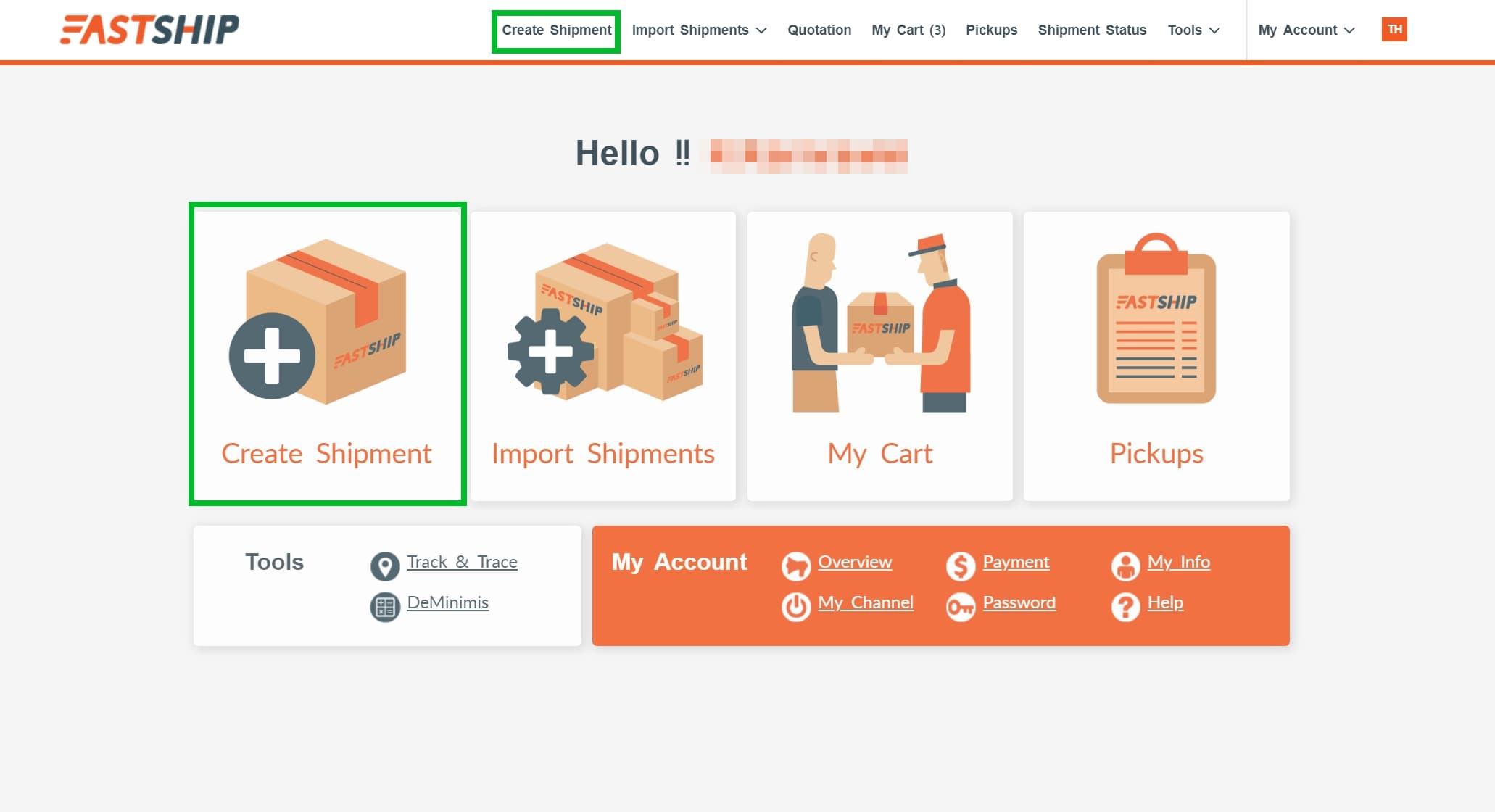
Once you have accessed into the FastShip app, you can just press “Create the shipment” button as shown in the picture below in order to add your shipment detail.
4. Add your shipment information
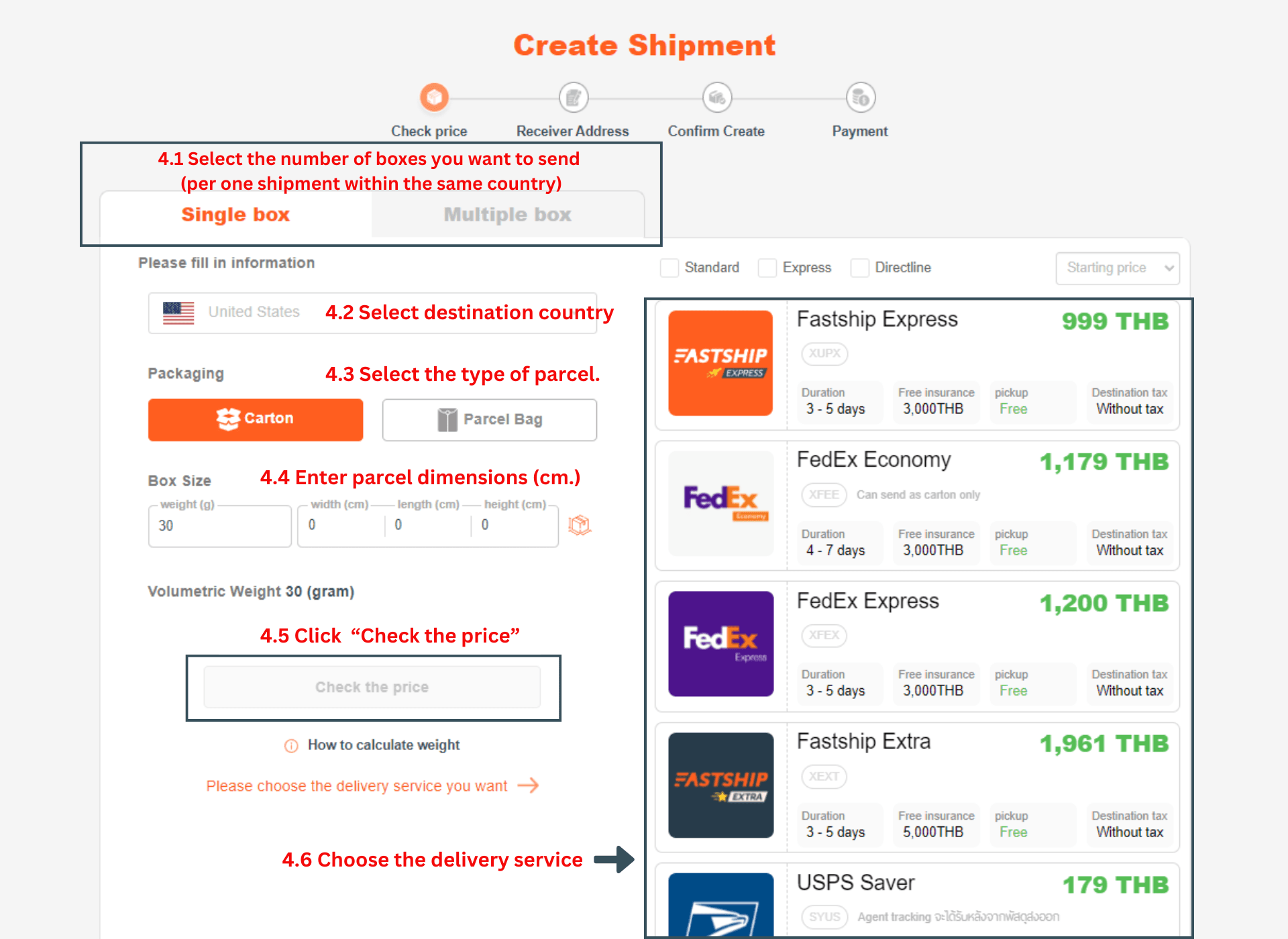
4.1 Select the number of boxes you want to send (per one shipment within the same country)
4.2 Select destination country
4.3 Select the type of parcel
4.4 Enter parcel dimensions (cm.)
4.5 Click “Check the price
4.6 Choose the delivery service
Choose the delivery options >>> https://fastship.co/helps/delivery-time/
5. Add your receiver address
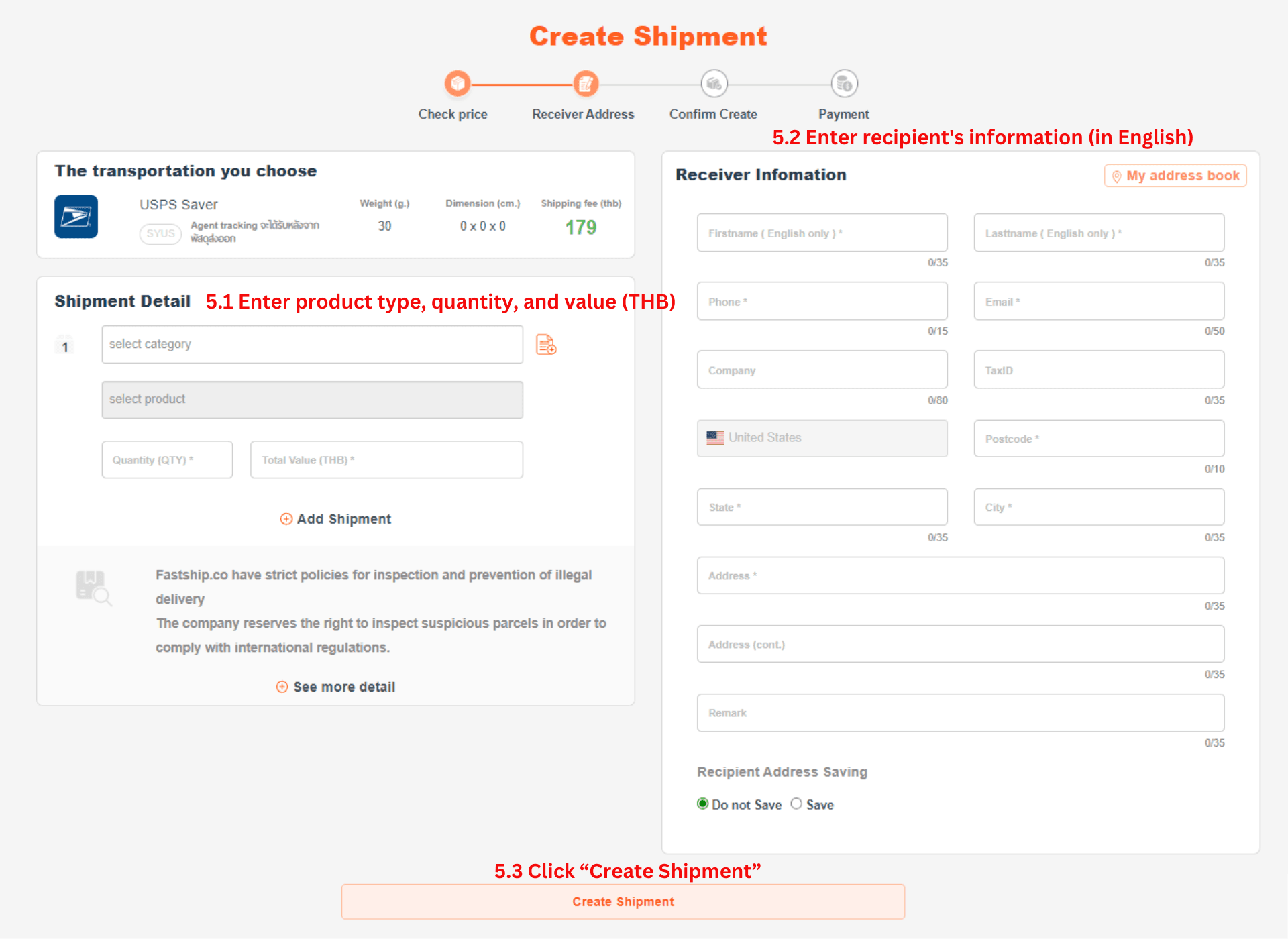
5.1 Enter product type, quantity, and value (THB)
5.2 Enter the recipient’s information (in English)
6. Create shipment
6.1 Review your shipment again
6.2 Check your pickup address
6.3 Enter information for tax invoice (if applicable)
6.4 Select pickup agent
6.5 Enter discount code (if available)
6.6 Click agree
6.7 Click “Confirm”
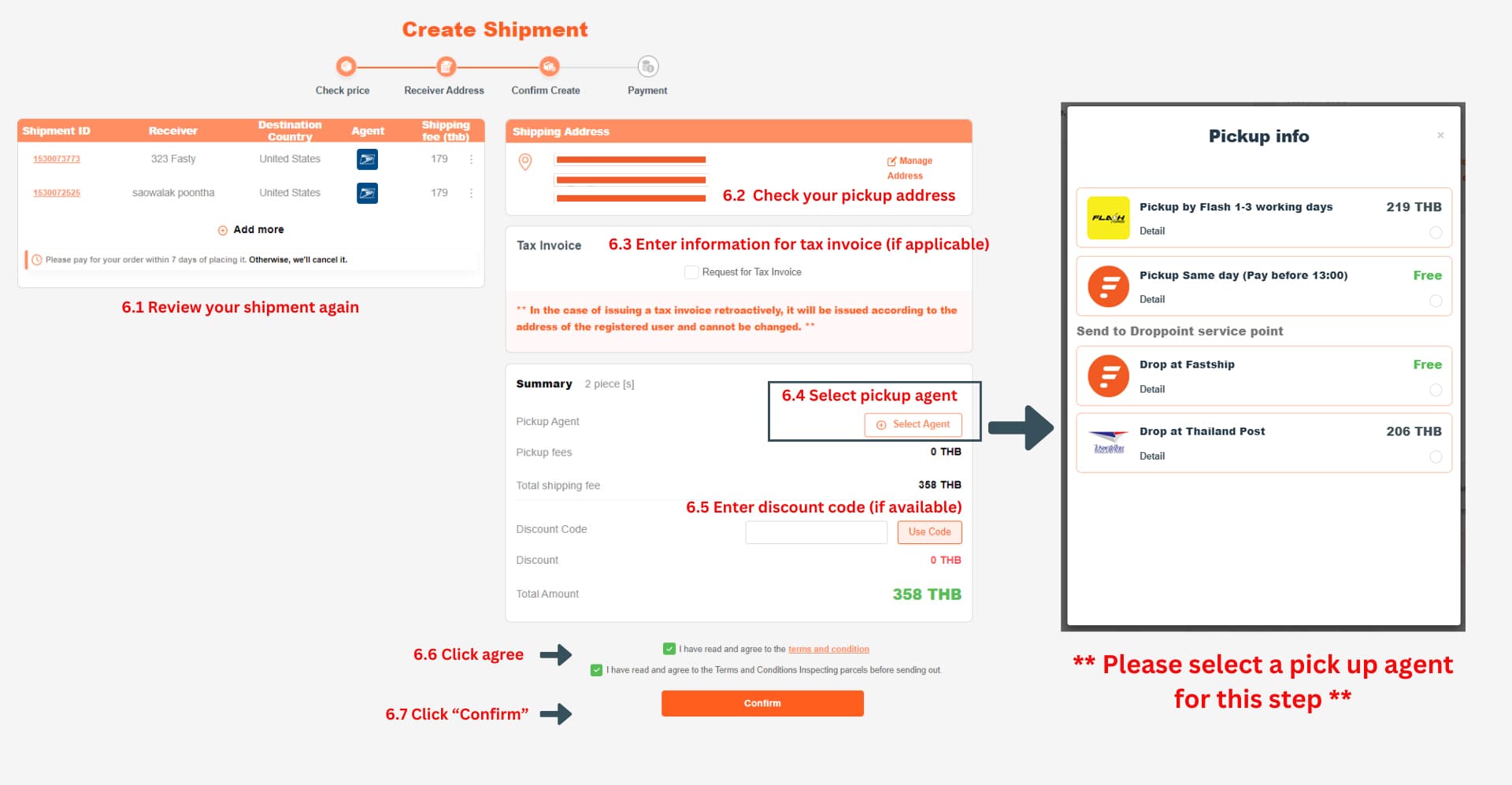
You can drop your parcel either 1. Fastship Warehouse : 1/269 Chaengwattana 14 Chaengwattana Road, Thungsonghong Laksi Bangkok 10210 >> Fastship On Google Map 2. Thailand Post Office (1,000 locations nationwide) click to see more detail
7. Shipment summary and payment
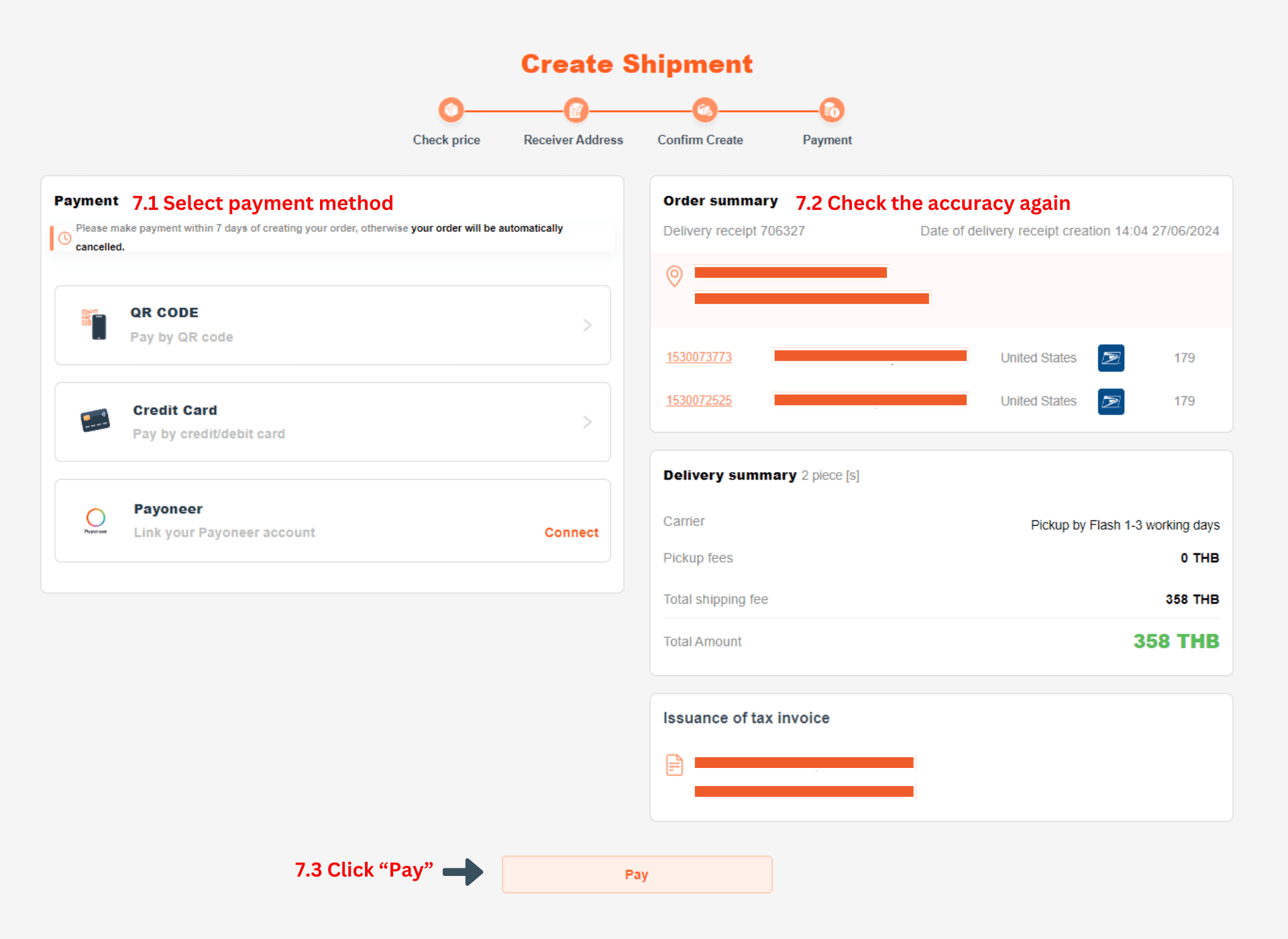
7.1 Select payment method
7.2 Check the accuracy again
7.3 Click “pay”
8. Delivery status
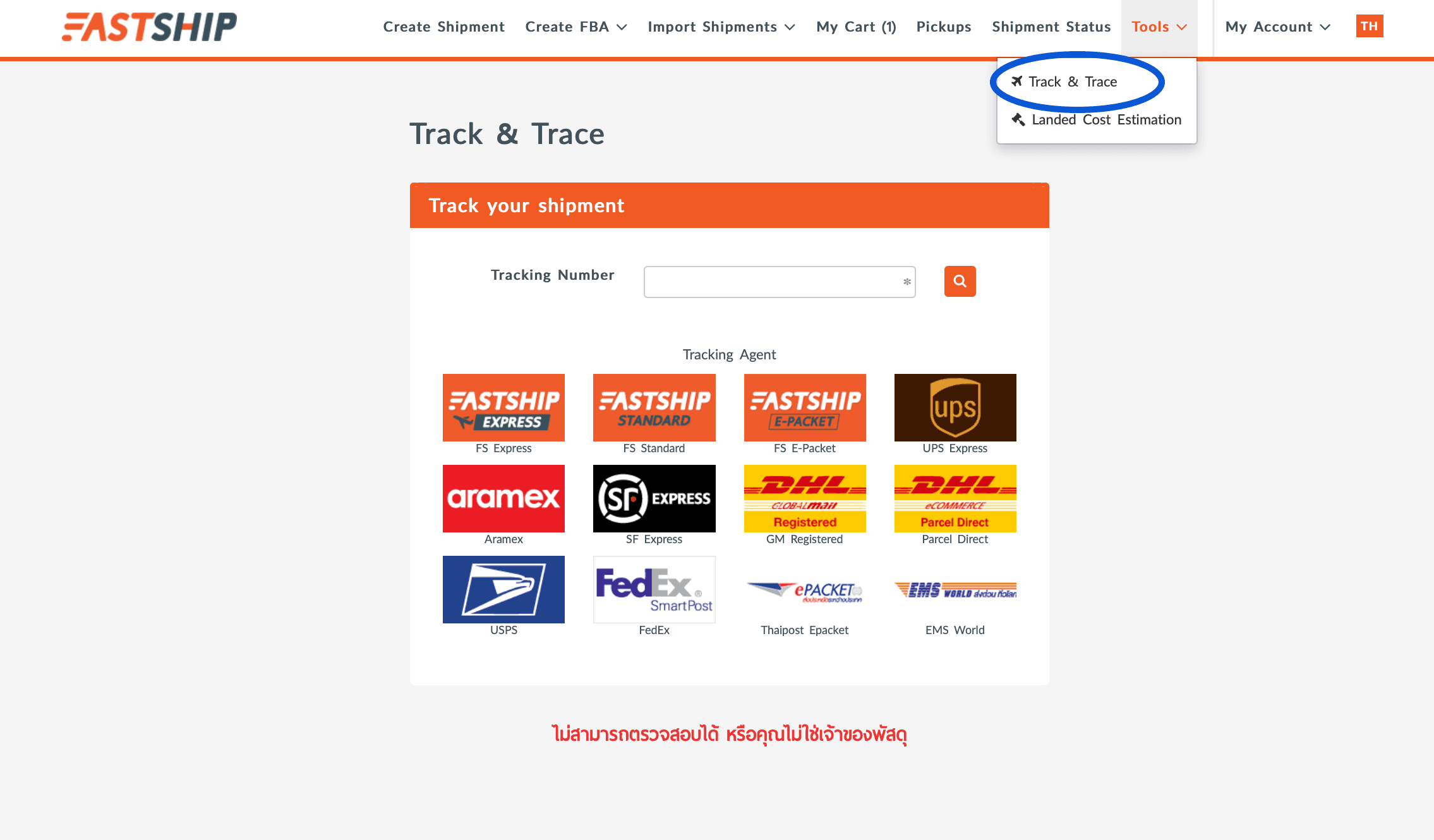
8.1 You can check the shipment status, if you have made the payment before 3.00 p.m. Your shipment tracking number will be notified.
8.2 You can check the status from the given tracking number by using “Tool” and “Checking status”
8.3 You can input your tracking number and press “Search”
8.4 You can also check the status according to the agent you have previously chosen
Related Articles
See all other services and information
Information, details, terms, and service fees are subject to change without prior notice. Please verify the latest information prior to reference or transaction, or contact Customer Service for confirmation.